MX Master 3S for Excel: What Changes When You Turn the Thumb Wheel?

A separate thumb wheel scrolls across Excel columns, but optional app profiles can turn it into a zoom, tab or brush-size control. Check Options+ access first.
For a wide Excel sheet, the MX Master 3S gives your thumb a separate horizontal-scrolling control. That is the concrete reason to consider it: moving across columns without making the top wheel do both jobs. But the same thumb movement can switch browser tabs or zoom a document when an app-specific profile is active.
This guide covers the Graphite Standard Edition, model 910-006557. The purchase decision is less about a long feature list and more about whether you can use—and want—different wheel behavior in different applications.
Two wheels, two directions
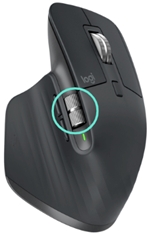
The top wheel handles conventional scrolling and can switch between ratchet and free-spin modes. The side thumb wheel provides horizontal scrolling by default. Logitech’s Excel profile also assigns it horizontal scrolling, keeping that left-to-right action separate from the top wheel.

Do not confuse the thumb wheel with the Easy-Switch button underneath. The latter changes the connected device; it is not the control for moving across spreadsheet columns.
Leaving Excel can change what the wheel does
Logitech documents these optional predefined profiles in Options+:
- Excel: horizontal scrolling.
- Word and PowerPoint: zoom.
- Chrome, Edge and Safari: switching tabs.
- Photoshop: changing brush size.
- Premiere Pro and Final Cut Pro: horizontal timeline navigation.
That difference matters if you move between a spreadsheet and a browser: a gesture you associate with scrolling can select another tab instead. The profiles are customizable; you do not have to accept every predefined assignment. Options+ also exposes thumb-wheel speed and direction settings.

These are Logitech’s documented assignments, not results from hands-on testing or a promise that every application version will behave identically. For a browser-based spreadsheet or a specialized work application, do not assume the desktop Excel profile applies.
Check the software permission before buying for custom controls
The customization described here requires Logi Options+ on a supported Windows or macOS system. On an employer-managed computer, check whether you are allowed to install it and use its app profiles. Being able to pair a Bluetooth mouse does not establish that Options+ is available or permitted.
If software installation is blocked, do not buy on the assumption that brush-size control, tab switching or your own per-app assignments will be available. The key limitation is access to the configuration software, not merely having a wireless connection.
Match the package to the edition
The selected Standard Edition’s model details and box graphic list a Logi Bolt USB receiver and USB-A-to-C charging cable. The listing also contains a conflicting receiver-excluded bullet, while Logitech distinguishes receiver inclusion by edition. Check the selected model and package contents rather than assuming a Bluetooth Edition, Mac or Business listing is identical.

The USB-C port is for charging; do not interpret the included cable as evidence of a wired data mode. For this purchase, verify the exact Standard Edition package and Options+ access, then decide whether a dedicated horizontal wheel solves your spreadsheet navigation problem.
Choose the item from this guide